
commercetools Shopify Import Help
The commercetools Shopify Import works by querying data from the commercetools API, running it through the JSONata mappings to convert it to the Shopify format, and then sending it to Shopify using their GraphQL Admin API.
Shopify bulk operations are used to import products and categories, so the importer can handle large amounts of data. For security reasons the customers and orders imports do not use this approach (see the Customers and Orders sections below for more details).
Products, Collections and Customers are updated if they already exist. This is determined using a metafield on each type called
commercetools-id
. Discounts are also updated if they already exist, but they are tracked in our database rather than with a metafield. Orders are not updated if they exist; an order that has already been imported is skipped. See the Orders and Discounts sections below for more details.
Getting Started
When you first install the Shopify app, a setup process will guide you through getting started:
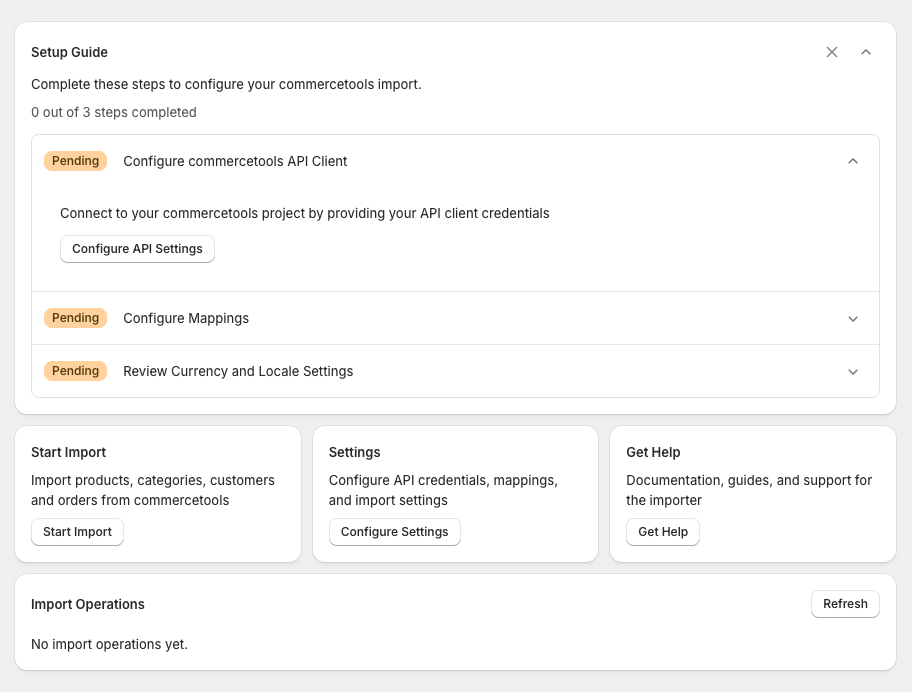
The commercetools API Client details are required so the importer can use the commercetools APIs to get the data to import.
The mapping configurations determine how data is mapped from commercetools to Shopify.
The currency and locale settings determine the values to use when getting data from commercetools. E.g. to map the product name you need the locale because this is a localised string in commercetools, but you need a single string value in the Shopify API.
See the sections below for more help on how the importer works.
Products
The commercetools products API is used to get products. At present, just the published product data is available.
The mapping configuration can be set per commercetools product type. There is a default mapping configuration that is used if there is no specific mapping for a product type.
When you create a new mapping, it is pre-populated with some default rules to make it easier to get started.
You can also create another mapping configuration based on an existing one by using the Copy option on the Product Mappings page.
The source object is based on the
Product
object, but only with the
masterData.current
data. The following fields are available as the source for mapping expressions:
-
All
Productfields apart frommasterData -
All fields from
masterData.current(e.g.name,categories,descriptionetc) -
allVariants- this combines themasterVariantobject andvariantsarray into a single array for easier mapping -
published- frommasterData.published -
hasStagedChanges- frommasterData.hasStagedChanges
The productSet mutation is used to create/update products, so the Shopify fields to map to are ProductSetInput .
Variants
commercetools attribute names can be used to map to Shopify options. E.g. if you have an attribute called
material
in commercetools and you add it to the
Variant Attributes for Options
list in the mapping configuration, then an option will be created in the Shopify product for that attribute.
Inventory
If you choose a Shopify inventory location when starting an import, this makes the location available to the mapping. If the inventory value is mapped to the
inventoryQuantities
field on variants in Shopify (as per the default mapping when you create a product mapping) then inventory will be imported into Shopify. Only 1 inventory location is supported per import at present.
Note, when updating an existing variant, only existing locations will have their inventory updated. New locations won't be added by the Shopify API. So if you have previously done an import without an inventory location, subsequent imports will not be able to set inventory on products. See inventoryQuantities for more details.
Product Options
Mapping to product options in Shopify is one of the more complex aspects of mapping products. Options have to be unique across a product and there is a maximum of 3 options per product.
The attributes in the Variant Attributes for Options section on the Product Mapping configuration page are used to build the Shopify product options. See the custom functions in the Mapping section below for how these attributes are used.
Categories
The
commercetools categories API
is used to get categories. The
Category
object is used as the source for the category mapping.
The collectionCreate and collectionUpdate mutations are used to create/update collections in Shopify. These both use the CollectionInput input object, so these are the fields that can be used as the mapping destinations.
Products in Collections
You can choose to import products from commercetools categories into Shopify collections when you start an import.
The product-projections API is used to get the products for the categories.
For products to be imported into the created Shopify collections, they first need to have been imported using this tool. This is because the mapping between the commercetools product ID and Shopify ID is stored in our database to efficiently match products.
Customers
The
commercetools customers API
is used to get customers. The
Customer
object is used as the source for the customer mapping.
The customerSet mutation is used to create/update customers.
Customer Identifier
For the
identifier
parameter to the
customerSet
mutation, we use the
customId
option with a
commercetools-id
metafield we create for customers. This is so we can identify customers in Shopify even when their email changes or we receive a customer deleted event from commercetools.
This does mean if a customer hasn't been imported using this tool, we can't match them up and process any sync events. As a result, if a customer exists with the same email (but without the metafield with the commercetools ID), the import will fail for that customer.
Customer Import Approach
We don't use the bulk import operation functionality for customers. Instead, we use the
customerSet
mutation directly. This is for security. While the Shopify bulk import files use a unique file name that can't be guessed, they are publicly available and aren't encrypted. This means that approach isn't suitable for importing sensitive data.
We do batch multiple mutations into a single request, but the direct mutation approach is less efficient than using bulk operations. Your store type determines the API limits available to you. In our tests, a Shopify Plus store import took approx 25-35 mins for 100,000 customers.
We don't log or store the customer data from commercetools. We query the commercetools API and call the Shopify GraphQL Admin API with this data. We do store the commercetools customer IDs so we can display import results in the UI.
Although we endeavour not to log any customer data, the Shopify API can return errors which include the data being imported (e.g. for a mapping config error). We remove the customer from this response before storing the error, but there could be other scenarios where this isn't handled. As a result, we clear errors after 30 days. See the Log Retention section below.
commercetools Customer Deleted Events
A customer deletion in Shopify will fail if the customer has orders (see
customerDelete
). As a result, when we receive a customer deleted event from commercetools, we call the
customerRequestDataErasure
mutation in Shopify (if the customer is found) to request the customer's personal data be erased. Read more about this
here
.
Orders
The
commercetools orders API
is used to get orders. The
Order
object is used as the source for the order mapping with an additional
flattenedLineItems
field (see the Line Items section below).
The orderCreate mutation is used to create orders, so the Shopify fields to map to are OrderCreateOrderInput .
Order Identifier
Unlike products, collections and customers, orders are not matched using a
commercetools-id
metafield. This is because there is a bug in the Shopify
orderCreate
mutation that still creates an order even if there is an existing order with the same metafield value. See
orderCreate ignores a unique id metafield value already held by another order
for more details.
As a result, we use a database table to track imported orders. If a record exists for the commercetools order ID, we check if the associated Shopify order still exists. If it does, the order is skipped.
Due to the complex nature of orders, some custom functions are provided to help with the more complex aspects, such as mapping shipping lines and linking line items to previously imported products/variants. See the Custom Functions section under Mapping below for the full list, and the Line Items section below for more on line items.
Line Items
We provide a
flattenedLineItems
field on the order source object to make it easier to map line items. A line item with per-quantity discounts (
discountedPricePerQuantity
) is split into one Shopify line item per discount tier, because Shopify has no per-quantity discount concept. The flattened line item exposes all the standard commercetools
LineItem
fields plus
normalisedPriceSet
and
normalisedTaxLines
, which contain the pre-computed price and tax values.
The
$resolveCommercetoolsVariant
custom function links line items to products/variants in Shopify that have previously been imported. It looks up the Shopify variant/product by the commercetools SKU using the
custom.commercetools-sku
metafield that the product import creates on each variant. If a SKU can't be resolved (the product hasn't been imported, or the metafield definition doesn't exist), the line item
title
is used instead.
Order Import Approach
Like customers, orders don't use the bulk operation functionality. Orders are created one at a time using the
orderCreate
mutation.
Note that Shopify development stores hard-limit order creation to approximately 5 per minute.
Unsupported Orders
At present, we reject orders in the following scenarios:
-
Orders with a discount applied to the order total (
discountOnTotalPrice). -
Orders that ship to more than one address. By default, Shopify doesn't support orders with multiple shipping addresses. This is detected when the order has more than one
itemShippingAddressesentry.
Discounts
Note, discounts do not import 1-1 from commercetools to Shopify as their models are very different. We try to cover the common cases. All discounts should be reviewed carefully after import. See the Unsupported Discounts section below for more details.
The
commercetools cart discounts API
is used to get discounts. The
CartDiscount
object is used as the source for the discount mapping. Product discounts are not imported.
The mapped discount determines which Shopify mutation is used. The mapping outputs a single key naming the discount type, and the importer calls the matching create or update mutation:
| Mapping key | Shopify mutation |
|---|---|
automaticDiscount
|
discountAutomaticBasicCreate |
freeShippingDiscount
|
discountAutomaticFreeShippingCreate |
bxgyDiscount
|
discountAutomaticBxgyCreate |
discountCodeBasic
|
discountCodeBasicCreate |
discountCodeFreeShipping
|
discountCodeFreeShippingCreate |
discountCodeBxgy
|
discountCodeBxgyCreate |
The default mapping picks the type for you based on the commercetools discount's target (
shipping
,
pattern
,
multiBuyLineItems
) and whether it requires a discount code.
Discount Active State
A commercetools discount has an explicit
isActive
flag as well as valid from and to dates. Shopify has no explicit active state and just uses the
startsAt
and
endsAt
fields to determine if a discount is active. Shopify does have GraphQL mutations to activate or deactivate discounts - these set or clear the end date to enable or disable the discount.
To handle this difference, we have logic that runs after the discount is created or updated to reconcile the active state. Once the discount is imported, if the current Shopify status is incorrect, we use the appropriate Shopify mutation to activate or deactivate the discount so the two systems are in sync.
Note: If the discount is created or updated successfully but this activation step fails, the discount is reported as a failure on the import status page, with the discount left in place in Shopify.
Discount Identifier
Discounts are not matched using a
commercetools-id
metafield, because Shopify discounts don't support metafield-based identifiers on the create mutations. Instead we store the mapping between the commercetools discount ID and the Shopify discount ID in our database.
On a subsequent import, if a mapping exists we check the discount still exists in Shopify. If it does, the discount is updated; if it has been deleted in Shopify, the stale mapping is removed and the discount is created again.
Changing Discount Type
Shopify has no mutation that changes the type of an existing discount. If a commercetools discount changes so that it maps to a different Shopify type from the one already imported - e.g. it no longer requires a discount code, so it now maps to an automatic discount instead of a code discount - the update fails with an error naming the Shopify discount. To apply the change, delete that discount in Shopify and run the import again to recreate it as the new type.
Currencies
Shopify discounts only support a single currency, so only the currency configured in the General settings is imported. A currency-based commercetools discount will fail to be imported if it doesn't have a value for that currency. A cart predicate covering multiple currencies (conditions joined with
or
) uses the condition for the configured currency and ignores the others.
Products and Categories in Discounts
A commercetools discount can target specific products or categories. The referenced products and categories must have been imported using this tool first, as we look them up in Shopify using the
commercetools-id
metafield. If a referenced product or category can't be found, the whole discount fails rather than importing with part of its targeting missing.
If you import discounts at the same time as products and categories, the products and categories are imported first so they can be referenced.
Coupon Codes
If a commercetools cart discount requires a discount code, the codes for it are fetched from the discount codes API and imported as codes on the Shopify discount.
Shopify's discount code model is more limited than commercetools', so codes are skipped if they:
- Are inactive.
- Apply to more than one cart discount.
- Have their own cart predicate.
- Have a maximum number of applications (overall or per customer).
- Have their own validity dates.
If some codes are skipped the discount is still imported and is marked as Partial on the status page. If all the codes for a discount are unsupported, the discount fails to be imported.
When updating an existing discount, the codes in Shopify are reconciled with commercetools; codes that no longer exist in commercetools are removed and new ones added.
Unsupported Discounts
Discounts we can't represent in Shopify are recorded as failures with the reason shown on the import status page. The main cases are:
-
Value types other than relative (percentage) or absolute (fixed amount).
commercetools
fixedandgiftLineItemvalues aren't supported. - Shipping discounts that aren't 100% off. Shopify only supports free shipping, not a partial shipping discount.
-
Cart predicates we can't translate into a Shopify minimum requirement.
Supported forms are: applies to all carts (
1 = 1), a minimum quantity (lineItemCount(1 = 1) >= 3) and a minimum total (totalPrice >= "50.00 GBP", including multiple currencies joined withorwhere one matches your import currency). Anything more complex - conditions combined withand, negations, or other fields - is rejected. -
Target predicates that don't resolve to products or categories.
A discount can target everything, a set of products (
product.id = "..."/product.id in (...)) or a set of categories (categories.id contains any (...)), but not a mixture of both, and not with!=,not in,andornot(). -
Buy X Get Y discounts with more than one trigger or target pattern
, a bounded quantity range on the trigger, or (for the
multiBuyLineItemstarget) a discount that doesn't require buying more items than it discounts.
Discount Import Approach
Discounts are imported one at a time. Each discount can require several follow-up calls (adding coupon codes, activating/deactivating).
If a discount is created but a follow-up step fails - e.g. adding the remaining coupon codes - this is reported as a failure on the status page so you can act on it. The discount itself will still exist in Shopify.
Mapping
The mapping system converts commercetools data into Shopify data using JSONata expressions.
There are two ways to edit a mapping:
-
Standard
mode presents the mapping as a list of properties. Each property has an output key (the Shopify field to set, e.g.
title) and a JSONata expression that produces its value. - Advanced mode lets you edit the whole mapping as a single JSONata expression that returns the complete Shopify object. Some expressions can only be represented in Advanced mode, in which case the Standard view is unavailable.
The default rules created when you create a mapping configuration are a good example of how to write the expressions. See the Variables and Custom Functions sections below for the values and functions available to your expressions.
Below is an example screenshot of a default product mapping configuration.
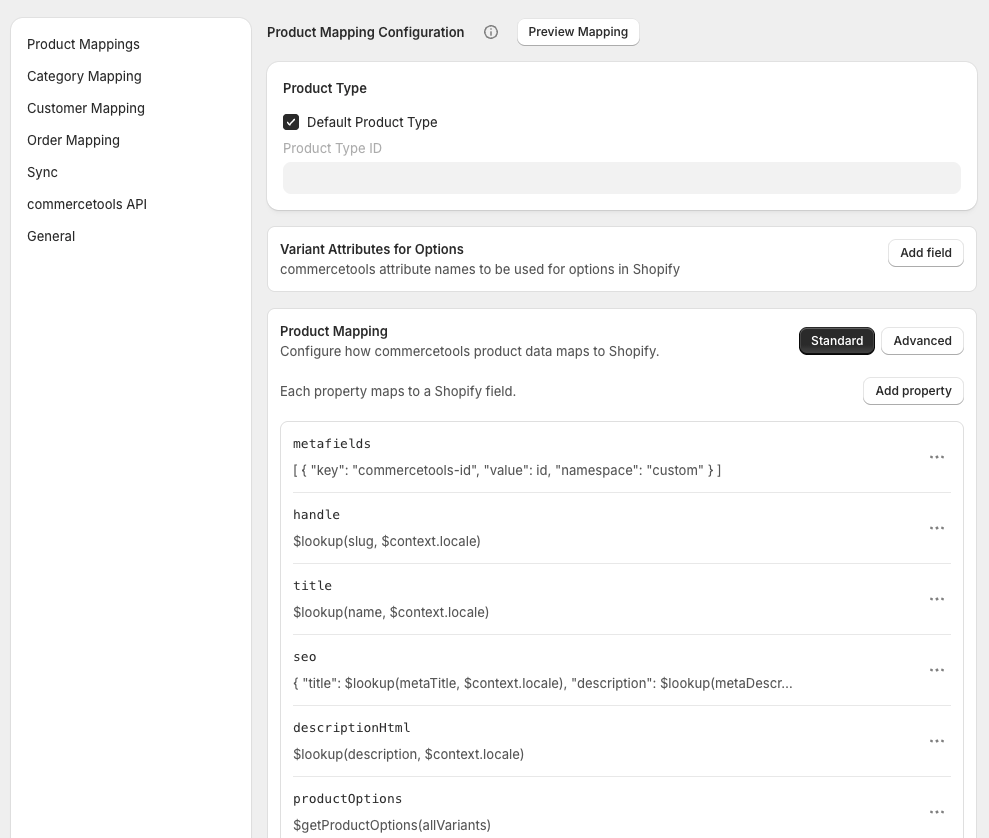
Use the Preview Mapping option to preview how the mapping expressions will transform the data for a real product, category, customer, order or discount from your commercetools project. This is a great way to test your mapping configuration before running an import. You don't need to save the mapping to preview it.
JSONata Basics
-
A single property name. E.g.
firstName. This will take thefirstNameproperty from the source object. -
Field references are separated by a
.. E.g.totalPrice.currencyCode -
Simple predicate. E.g.
Phone[type='mobile'] -
Functions. E.g.
$uppercase("Hello World")will generate"HELLO WORLD" - Variables and inline functions. See basic example below.
(
  $locale := $context.locale;

  $toTitleCase := function($s) {
    $uppercase($substring($s, 0, 1)) & $substring($s, 1)
  };

  {
    "title": $toTitleCase($lookup(name, $locale))
  }
)
name
in this example is a
LocalizedString
in commercetools.
See https://docs.jsonata.org for more info.
Variables
Standard JSONata context references are available, for example
$
for the current context value and
$$
for the root input object. Localised commercetools strings can be resolved with the built-in JSONata
$lookup
function (e.g.
$lookup(name, $context.locale)
).
A
$context
variable is also bound for use in your expressions. What it contains depends on the entity being mapped:
-
$context.locale- The configured locale (e.g.en-GB). Available for product, category, order and discount mappings. -
$context.currencyCode- The configured currency code (e.g.GBP). Available for product, category and discount mappings. -
$context.inventoryLocationId- The selected Shopify inventory location ID. Available for product variant mappings. -
$context.couponCodes- The supported coupon codes for the discount being imported. Available for discount mappings. The default mapping uses the first code as the Shopify discount'scode; any others are added as additional redeem codes by the importer.
Customer mappings do not have a
$context
variable.
Custom Functions
In addition to the standard JSONata functions , the importer provides some custom functions to make mapping easier. The functions available depend on the entity being mapped. The default rules are the best reference for how to use them.
Product Variants
The
$getProductOptions(allVariants)
function aggregates the different options from the product variants. It builds an array of
OptionSetInput
for the
productOptions
property on
ProductSetInput
. Pass it the
allVariants
array.
$getVariantOptionValues
(see below) is used in conjunction with this to build the
optionValues
for each variant.
If a commercetools product only has a single variant, a single special option is returned like this:
[
  {
    "name": "Title",
    "values": [{ "name": "Default Title" }]
  }
]
This ensures it is imported correctly in Shopify.
If there are multiple variants in commercetools, the
$getProductOptions
function iterates over them and looks at each variant's attributes. Only attributes in the
Variant Attributes for Options
list are matched. For a matching attribute, we collect the unique values across all variants and turn each attribute into a Shopify option.
All the attributes you want to use for options must be in the
Variant Attributes for Options
list.
Some more detail on how this works:
-
Option names
use the attribute's
labelfrom the commercetools product type definition (e.g. an attribute namedcolor-labelwith the labelColorproduces an option calledColor). If no label is found, the attribute name is used instead. -
Option order
follows the order of the
Variant Attributes for Optionslist. -
Attribute types are resolved to a single string value
using the configured locale. Plain
textattributes are used as-is,enumattributes use the enum label, and localised types (ltext,lenumand similar) are resolved for the locale. If a value can't be resolved (e.g. it's empty for the locale), then the value is ignored. - An attribute only becomes an option if at least one variant has a value for it. If none of the variants have a usable value for an attribute in the list, no option is created for it.
Note,
set
type attributes are not supported for options because they can hold multiple values, so a variant can't map to a single option value.
$getVariantOptionValues($, $$.allVariants)
- Builds an array of
VariantOptionValueInput
for a variant's
optionValues
field from the Variant Attributes for Options. Pass it the current variant and the full
allVariants
array.
Where
$getProductOptions
defines the options on the product,
$getVariantOptionValues
sets a single variant's value for each of those options. It works the same way, but for one variant:
-
It looks at the current variant's attributes and only matches those in the
Variant Attributes for Optionslist. -
Each matched attribute produces an entry with the option name (the attribute's
labelfrom the product type definition, falling back to the attribute name) and this variant's value for it. TheoptionNamematches the optionnamefrom$getProductOptionsso Shopify links the value to the right option. -
The entries follow the order of the
Variant Attributes for Optionslist. -
Attribute values are resolved to a single string using the configured locale (as described for
$getProductOptionsabove). If the current variant has no usable value for an attribute in the list, no entry is created for that option on this variant. -
Like
$getProductOptions, if a single variant is passed inallVariants, a single{ "optionName": "Title", "name": "Default Title" }entry is returned, and the samesettype and missing attribute type definition errors apply.
$getVariantPrice($)
- Extracts a variant's price matching the context currency and converts it from cents to a decimal.
Customers
-
$transformAddressCountry(address)- Maps commercetools country codes to Shopify country codes. Shopify represents US territory country codes (e.g.PRfor Puerto Rico) with a country ofUSand the territory set as the state.
Orders
-
$transformShippingLines($)- Maps the commercetools shipping to Shopify shipping lines, including the shipping tax. -
$transformAddressCountry(address)- Same as$transformAddressCountryfor Customers. -
$resolveCommercetoolsVariant(sku, field)- Links a line item to a previously imported Shopify product/variant by looking up the commercetools SKU.fieldis"variantId"or"productId"to choose which id to return. Returns nothing if the SKU can't be resolved, so Shopify falls back to the line item title. -
$typedMoneyToShopifyMoney(money, format)- Converts a commercetools typed-money object (withcentAmountandfractionDigits) into a Shopify money shape, converting the cent amount to a decimal.formatis"amount","moneyInput"or"moneyBagInput"to match the Shopify field being mapped to.
Discounts
Discounts need more translation than the other entities, because Shopify uses multiple GraphQL mutations to create/update discounts. These functions assist with the mapping. If a function is given something it can't translate, it fails with a message explaining why - see the Unsupported Discounts section above.
-
$cartDiscountValueToCustomerGetsValue(value)- Converts the commercetools discount value into the Shopify "customer gets" value. A relative discount becomes a percentage (commercetools stores 10% as a permyriad of1000, Shopify0.1); an absolute discount becomes the amount for your configured currency, converted from cents to a decimal. -
$cartPredicateToMinimumRequirement(cartPredicate)- Converts the discount's cart predicate into a Shopify minimum requirement. A minimum quantity predicate becomes a minimum quantity, and a minimum total predicate becomes a minimum subtotal for your configured currency. A predicate that applies to all carts returns nothing, so no minimum requirement is set. -
$predicateToDiscountItems(predicate)- Works out which items the discount applies to. With no predicate (or a predicate matching everything) it returns "all items". Otherwise it reads the product or category IDs out of the predicate and swaps them for the Shopify products or collections that were created when you imported them. If a referenced product or category hasn't been imported yet, the discount fails - see Products and Categories in Discounts above.
The remaining functions build the two halves of a Buy X Get Y discount. commercetools has two ways of expressing these, so there is a pair of functions for each.
For the
pattern
target, which describes the trigger and reward as separate patterns:
-
$triggerPatternToCustomerBuysValue(triggerPattern)- The quantity the customer has to buy to trigger the discount, taken from the trigger pattern's minimum count. -
$targetPatternToCustomerGetsValue(targetPattern, value)- The quantity that gets discounted and the effect applied to it (a percentage or a fixed amount in your configured currency).
For the
multiBuyLineItems
target, which describes it as a trigger quantity and a discounted quantity (e.g. "buy 3 for the price of 2"):
-
$multiBuyTargetToCustomerBuysValue(target)- The quantity the customer has to buy. commercetools' trigger quantity counts the whole group (paid plus free items), whereas Shopify's "buy" quantity counts only the paid ones, so the discounted quantity is subtracted. -
$multiBuyTargetToCustomerGetsValue(target, value)- The quantity that gets discounted and the effect applied to it.
Starting an Import
There are a number of options to choose from when starting an import. Below is a screenshot of the start import page.
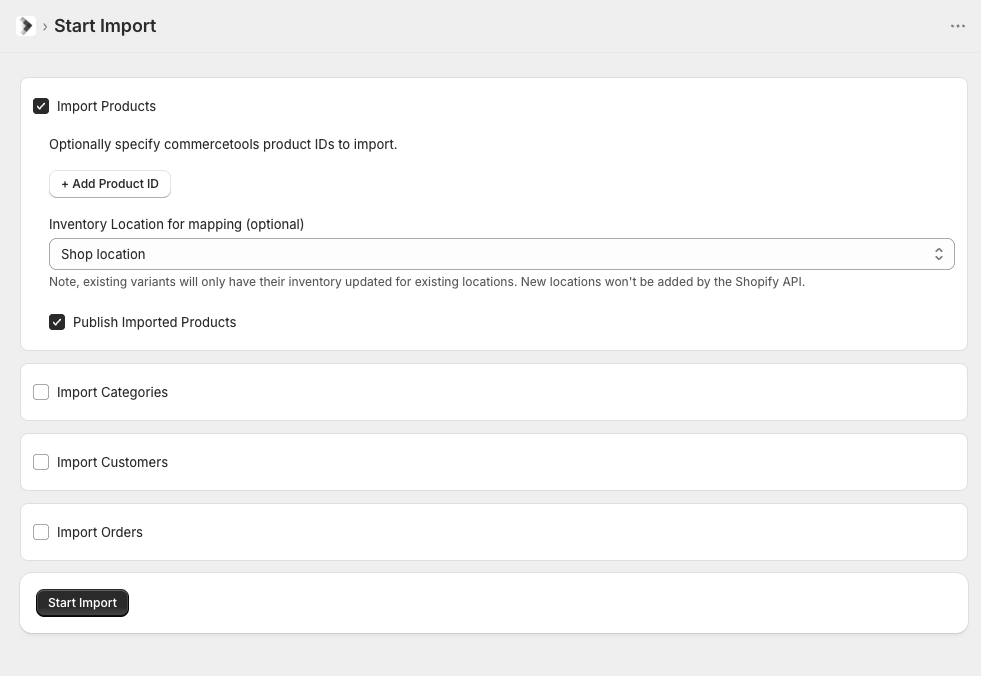
You can choose to import a limited number of products, discounts, categories, customers or orders. This is useful for testing your mapping configuration before doing a full import.
Note, when using the free version (which can only be used in a Dev store), you have to specify specific IDs and cannot do full imports. Also, you must have no more than 25 products in your dev store. This is to allow you to test the import functionality, but without being able to do a full import.
Products
You can choose to include an inventory location. This makes an
inventoryLocationId
variable available to use in your variant mapping rules (see above).
The Publish Imported Products option will publish products to the Online Store sales channel.
Categories
The Import Products into Collections option will import products from commercetools categories into the created Shopify collections. See the Categories section above for more details.
The Publish Imported Categories option will publish categories to the Online Store sales channel.
Orders
You can optionally specify commercetools order IDs to import. If you don't specify any IDs, all orders are imported. See the Orders section above for more details on how orders are imported.
Discounts
You can optionally specify commercetools cart discount IDs to import. If you don't specify any IDs, all cart discounts are imported. See the Discounts section above for more details on how discounts are imported.
Viewing Import Status
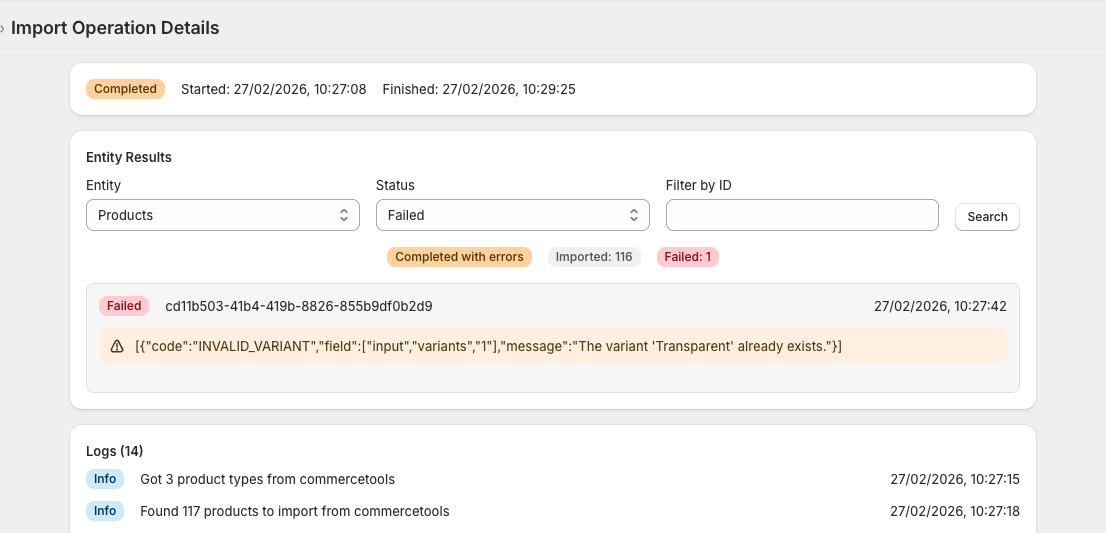
A status page is available for each import which shows the progress and results of the import. You can view the status page by clicking on an import from the Import Operations list. Below is an example screenshot of the status page.
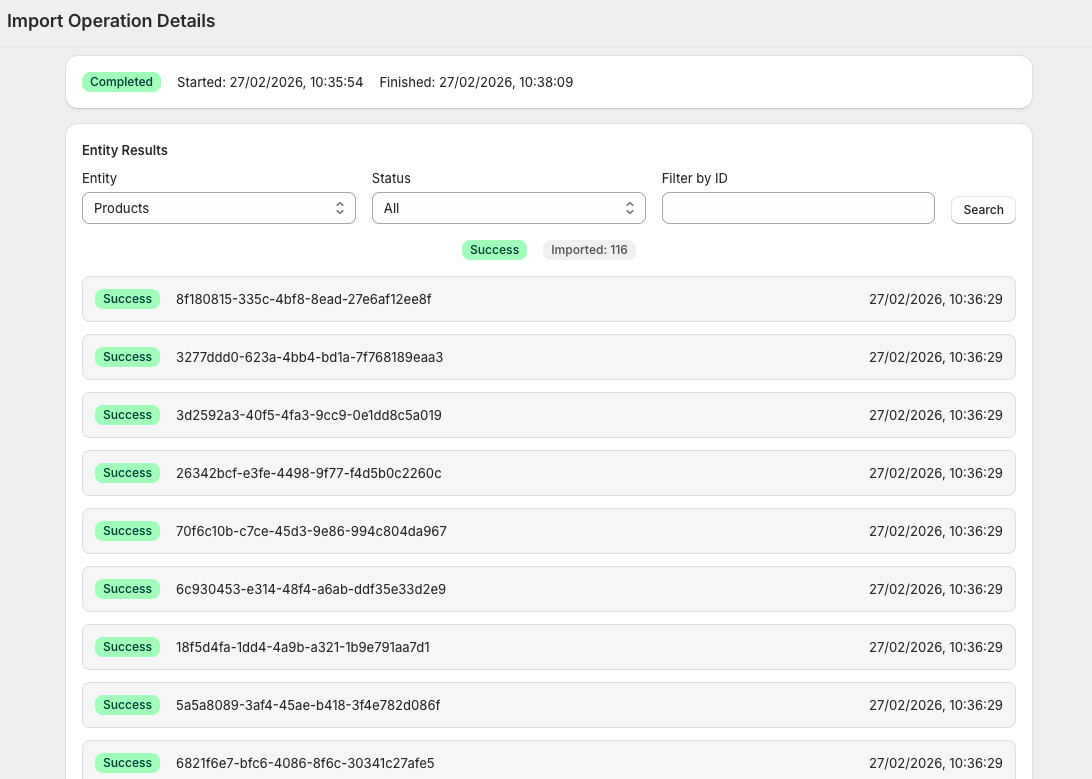
Each import shows results per product/category/customer/order/discount, filterable by status and searchable by commercetools ID.
- Success - Imported successfully
- Failed - Import failed (see error message)
- Partial - Created/updated but something didn't fully import (e.g. publishing failed, or some of a discount's coupon codes couldn't be imported)
Errors
If the mapping is invalid, the Shopify GraphQL API will return an error. This error is shown on the status page of an import. Below is an example of an error shown on the status page.
Continuous Sync from commercetools
You can automatically sync data from commercetools to Shopify when it changes in commercetools. This is done from the Sync screen:
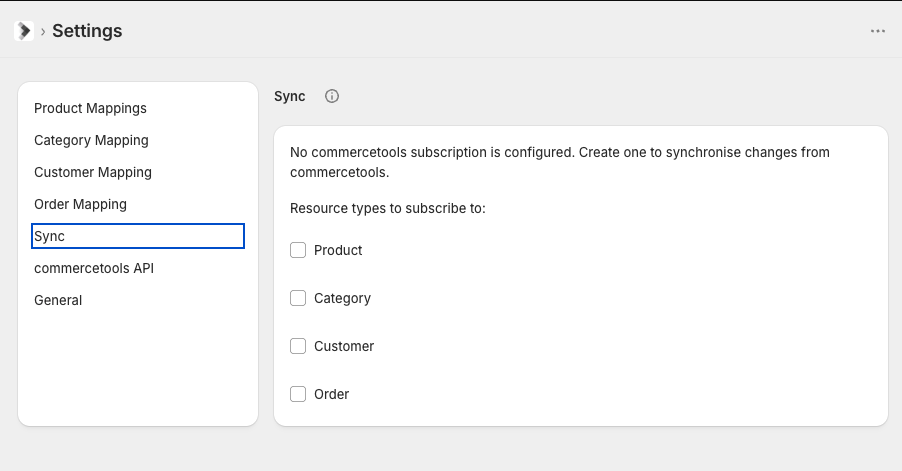
This uses a commercetools subscription. When a created or updated event is received from the subscription, the relevant entity is imported into Shopify using the mapping configuration.
Products, Categories, Discounts, Customers and Orders can all be synced. Note that, as orders are never updated (see the Orders section above), an updated event for an order that has already been imported is skipped.
A deleted event for Products or Categories removes the associated entity from Shopify.
A deleted event for Customers results in a call to the
customerRequestDataErasure
mutation in Shopify to request the customer's personal data be erased. See the Customers section above for more details.
Deleted events for Orders are ignored.
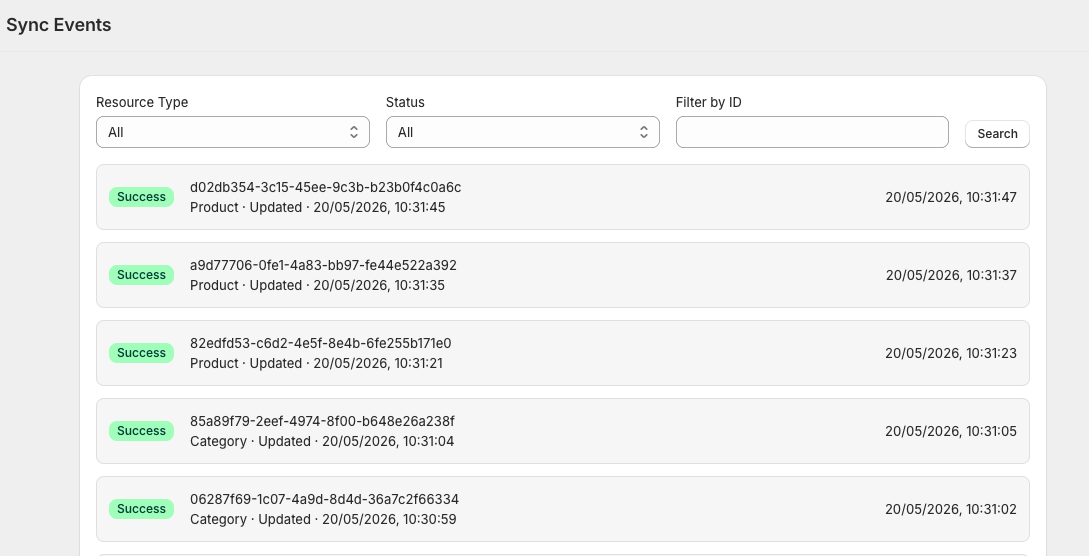
You can view the entities imported from commercetools in the sync events screen (link available on the Sync screen):
Failures
Any failures when handling these events are retried a number of times.
commercetools Scopes
The commercetools API Client you configure in the app's settings needs the right scopes so the importer can read the data you want to import. Each scope is granted per project and takes the form
scope:project-key
(for example
view_products:my-project-key
).
The scopes required depend on what you import:
| Import | Required scope |
|---|---|
| Products and Categories |
view_products
|
| Customers |
view_customers
|
| Orders |
view_orders
|
| Discounts |
view_cart_discounts
|
| Continuous Sync |
manage_subscriptions
|
Discounts do not need
view_cart_discounts
if the client already has
view_orders
, as that scope also grants access to cart discounts.
You can check which scopes are working using the Verify Settings button on the commercetools API settings screen. This runs a check against each commercetools API used by the importer and shows whether the client has access.
Troubleshooting
Mapping Errors
Most errors you will run into are issues mapping to the Shopify API. You will see details of the error in the status page of an import. Some common issues are listed below. The logs specify the bulk operation file URLs so you can review the data being sent to Shopify for debugging.
Duplicate Product Options
If you have multiple variants with the same value for an attribute that is being mapped to product options, then you will get an error from Shopify as options have to be unique. E.g.
{"code":"INVALID_VARIANT","field":["input","variants","1"],"message":"The variant 'White' already exists."}
You need to provide a valid list of attributes in the Variant Attributes for Options section to ensure uniqueness. E.g. in the error above, we add an additional
size
attribute to the Variant Attributes for Options list to ensure the option values are unique (e.g.
White / Small
and
White / Medium
instead of just
White
).
Invalid Mapping Configuration
If you map to a field that doesn't exist in the Shopify API, you will get an error like the one below. Check the Shopify API documentation for the mutation you are using to see the available fields.
{"code":null,"type":"GraphApi::BulkMutationUserError","field":["query"],"message":"Variable $productSet of type ProductSetInput! was provided invalid value for invalid-field (Field is not defined on ProductSetInput)","extra_info":null}
Bulk Operation File Sizes
Shopify limits the size of bulk operation files (see https://shopify.dev/docs/api/usage/bulk-operations/imports ). If you run into issues with this, the number of products/categories included in each file can be altered in the Settings - General - Advanced section.
Note, this only applies to product and category imports. Customer, order and discount imports don't use bulk operations (see the Customer Import Approach, Order Import Approach and Discount Import Approach sections above), so this setting has no effect on them.
Log Retention
We clear log messages and errors (that are stored for display in the UI) after 30 days (the commercetools IDs and import status are still retained).
Note, standard application logs are retained for 30 days by Vercel. See Runtime Logs for more details.