Dovetech Discounts Help
Comparison to Shopify Discounts
The Dovetech Discounts app uses Shopify Functions to apply discounts to stores. As such, it supports most of the Shopify discount features with some additional capabilities.
There are no UI elements to add to your store. All setup is done through the Shopify admin interface like the built-in Shopify discount functionality.
Benefits
- Conditions using additional properties. E.g. target specific product variants, billing country, customer amount spent and order count.
- Complex combining of conditions. E.g. target multiple collections or specific products in the same discount or target a collection, but exclude some products. This supports multiple conditions with AND/OR logic and grouping.
- Specify different currency amounts while still using an exchange rate for others
- Multiple language support for messages
- Amount off shipping (not just free shipping)
- Multiple tiers of awards
- Choose which items are discounted first (cheapest or most expensive)
Drawbacks
Some functionality is not exposed by Shopify to custom discount apps and as such we cannot support it:
- Allowing a discount to be featured on selected channels
- Ability to choose if POS Pro locations are included
Shopify Functions are also limited in how much and what data they can request from the cart. E.g. although customer segments are supported in the same way as Shopify discounts, they cannot be used in complex conditions, tier conditions etc.
Getting started
Install Dovetech Discounts from the Shopify App Store to add the app to your store.
After installing the application, you need to choose a plan. The app is free on development stores so you can select a plan without paying. For other stores there is a free trial.
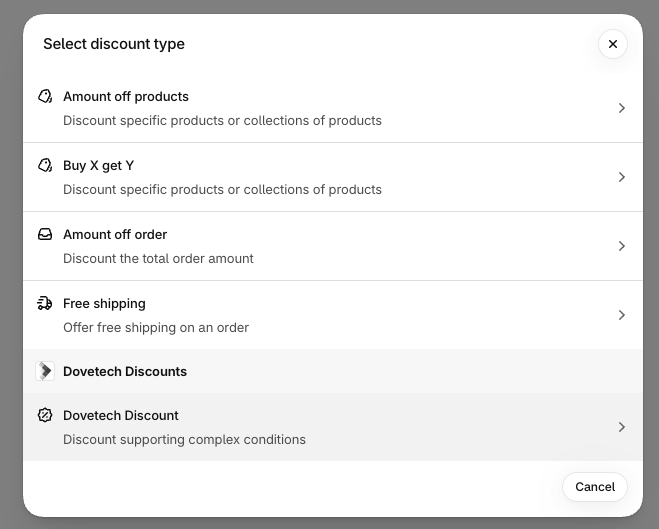
Once you have selected a plan, you can start creating discounts. To create a discount, go to the Shopify discounts page and click on "Create discount". Dovetech Discounts will then appear as an option for creating a new discount:
Overview
There are a number of sections displayed on the new/edit discount page to allow you to configure each discount. The sections that follow provide an overview of each section and its functionality.
There are a number of other options that are the same as the built-in Shopify discounts:
- Start and end dates
- The Expired/Active state. This uses an end date on the discount to expire the discount.
- The "Combinations" section allows you to choose which types of discounts this discount will combine with.
- The "Maximum discount uses" section allows you to choose how many times a discount code can be used.
Method
On the create discount page, the Method section allows you to choose whether the discount is applied via a discount code or automatically as well as enter a title. Note, unlike the Shopify discounts, the title is not used for display in the cart. See the Messages section below for more details.
Shopify does not allow changing the method of an existing discount after it has been created. If you need to do this, you can use the Duplicate button on the edit discount page to create a new discount with a different method.
Note, Shopify limits the number of automatic discounts to 25.
Eligibility
The Eligibility section allows you to choose Markets, Customer segments, and Specific customers who are eligible for the discount in the same way as Shopify discounts. In addition, you can add eligibility expressions using AND/OR logic and grouping.
Customer buys
The "Customer buys" section allows you to choose if the discount applies based on a minimum quantity of items or a minimum amount of items in the customer's cart.
Line Item Filter
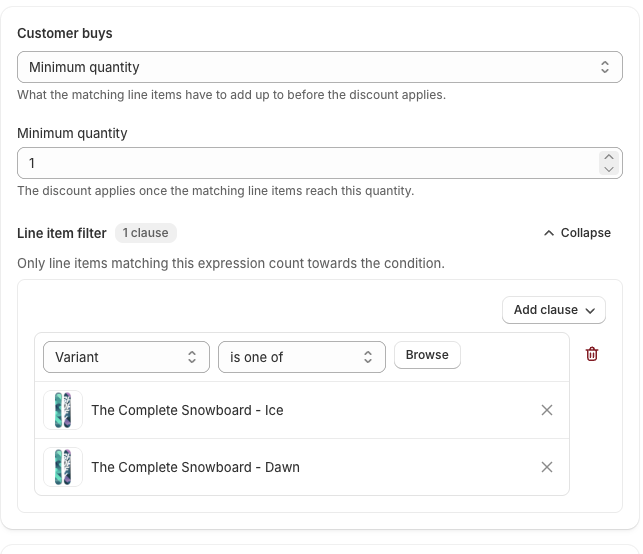
The line item filter allows you to build complex expressions that the items in the customer's cart must satisfy for the discount to apply.
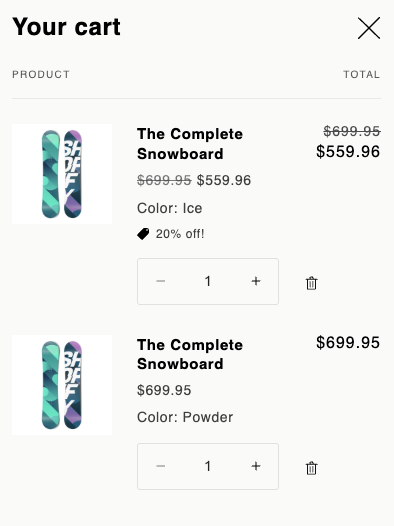
For example, the screenshot below shows a line item filter that only matches either the Ice or Dawn variants of The Complete Snowboard.
Other product variants won't match this filter, as you can see from the example cart below.
Actions
There are 3 types of actions supported: Line items, Order subtotal and Shipping cost. These are described below. Each one supports a percentage or currency amount off discount.
See the Currencies section below for more detail on how currency amounts are handled.
Line items
A line item action allows you to discount particular line items. You can choose to discount the items matching the condition line item filter or provide a different filter.
The percentage off applies the percentage to each matching line item. For an amount off, you can choose to either take the amount off each item or spread it across the matching items.
Limiting
You can limit the number of items that will be discounted. This is useful for discounts like "Buy 3, get 1 free" where you only want to discount the free item.
If you limit the number of items, you have some additional options (along with the quantity of items to apply to):
- Which items match first (cheapest or most expensive)
- The maximum number of uses per order. Leaving this blank means the discount will keep applying each time the conditions are met. For example, if you have a "Buy 3, get 1 free" discount and the customer adds 8 items to the cart, the discount will apply twice. If you enter 1, it will only apply once. Any higher number will limit the number of times the discount can be applied accordingly.
Order subtotal
The Order subtotal is the simplest type of action. You can apply a percentage or currency amount off the entire order subtotal.
Shipping cost
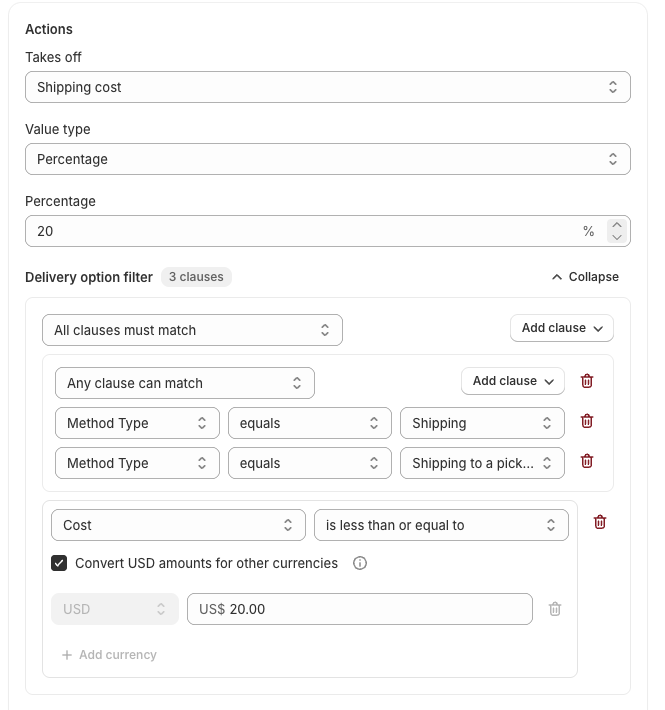
The shipping cost action allows you to specify a Delivery option filter to match which delivery options the discount should apply to.
You can match delivery options using Method Type, Cost or Handle as well as the delivery group country code.
The Method Type options are:
- Shipping
- Local Pickup
- Shipping to a pickup point
- Local delivery
- Retail
The example below discounts only delivery options with a Method Type of "Shipping" or "Shipping to a pickup point" and a Cost of 20 USD or less.
Tiers
Tiers allow you to override the percentage or currency amount based on specific conditions. E.g. you can set a higher discount for carts with a higher subtotal or customers who have spent more than a certain amount.
Note, we are limited in what we can offer here due to the limit of how much information we can request in a Shopify function as well as some information just not being available. E.g. customer segments aren't available.
Building Expressions
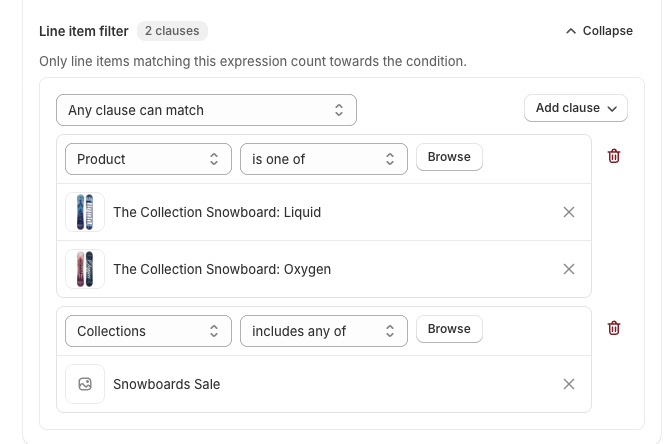
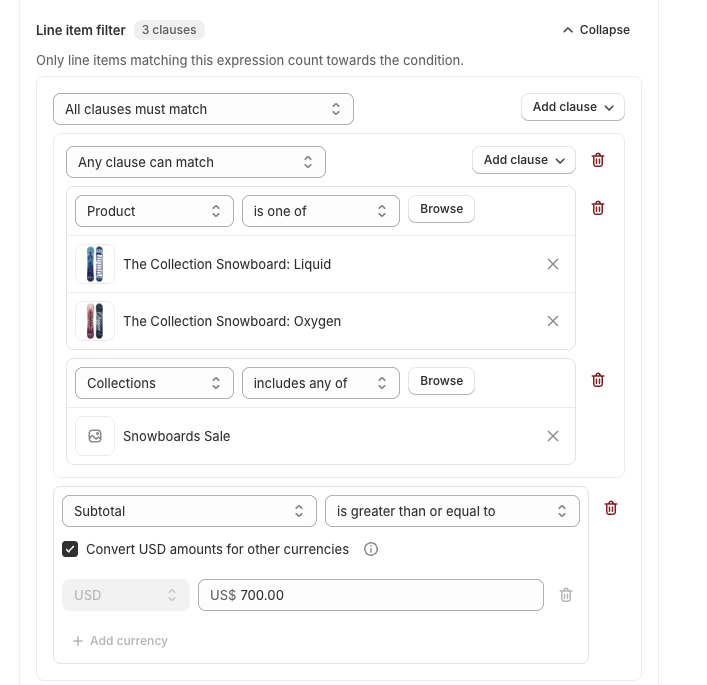
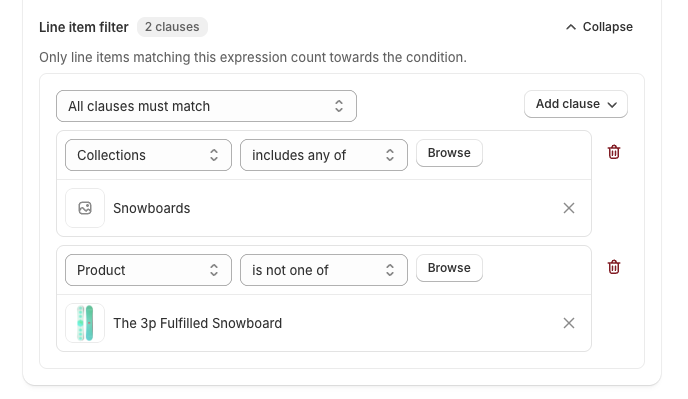
Expressions allow you to combine multiple conditions using the logical operators AND and OR using the "All clauses must match" (AND) and "Any clause can match" (OR) options.
For example, the screenshot below uses the "Any clause can match" option and therefore matches either "The Collection Snowboard: Liquid" or "The Collection Snowboard: Oxygen" products or any products in the "Snowboards Sale" collection.
The screenshot below shows a more complex example using a group to match products or collections, combined with a clause to only match items 700 USD or over.
You can also choose what doesn't match. The screenshot below matches products in the Snowboards collection, but excludes the "The 3p Fulfilled Snowboard" product using the "is not one of" option.
Expression Properties
All currency amounts used are before any discounts are applied. Each discount is called in parallel by Shopify before any discounts are applied, so we cannot access the discounted amounts. E.g. if you create an expression for the cart Subtotal, it will use the subtotal before any discounts are applied.
The Line item Subtotal is the price of the line item multiplied by its quantity, in the cart's currency. E.g. a line with 3 items priced at 10 USD each has a subtotal of 30 USD. Again, this is before any discounts are applied.
Messages
Unlike the Shopify discounts, the discount title isn't used for the message in the cart. Instead, we have a message field for this. The discount title is just used for display in the admin.
If your store has multiple published languages set up, you can enter a message per language. Note, languages are set up in the store settings under "Languages".
Currencies
For currency amounts, you can enter a value for any currency enabled on your store. This allows you to set specific discount amounts for any currency rather than relying solely on the exchange rate.
When the "Convert amounts for other currencies" option is checked, any other currency used on your store will also be automatically calculated based on the exchange rate configured in the Shopify market (Markets section of the Shopify admin). If this option isn't checked, only carts with a currency matching one of the entered values will match.
Example Discounts
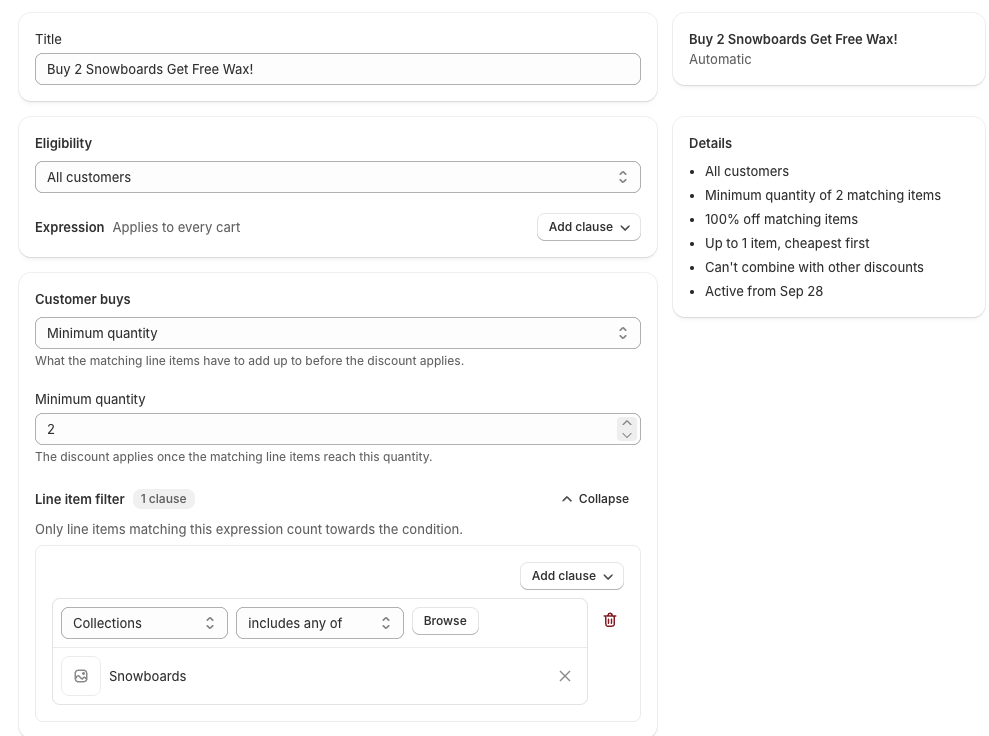
Buy 2 Snowboards Get Free Wax
The screenshot below shows the condition for a minimum quantity of 2 products in the Snowboards collection.
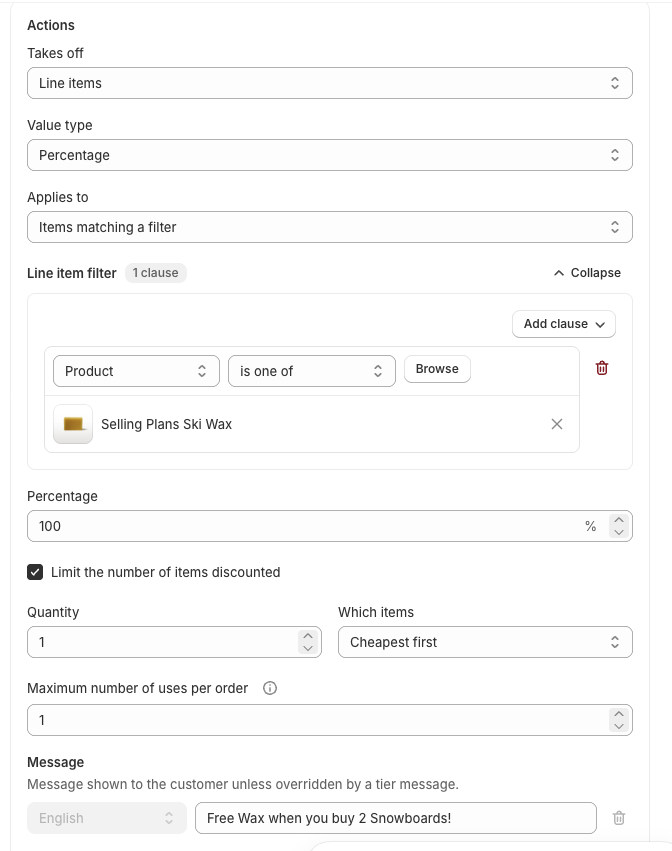
The screenshot below shows the action that gives 100% off the wax product. This is limited to only 1 per order so a cart only gets one free wax item regardless of how many snowboards are purchased. If you remove the "Maximum number of uses per order" limit, customers will receive a free wax for every 2 snowboards purchased (4 snowboards would get 2 free wax products etc.).
Buy 3 Snowboards Get 1 50% Off
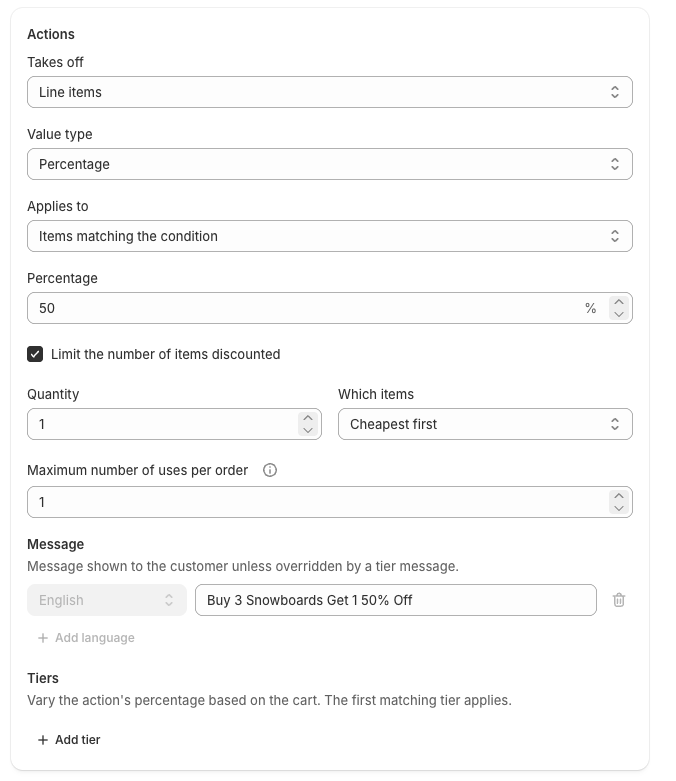
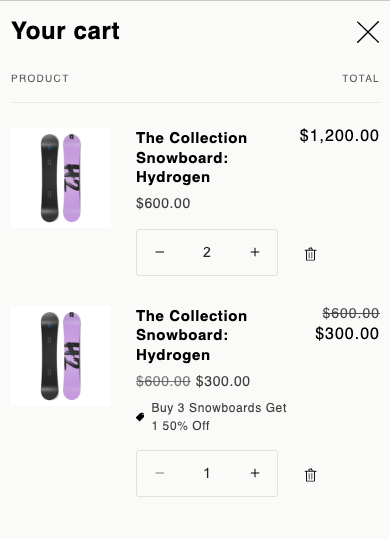
The screenshots below show an example of a discount where buying 3 snowboards gives 50% off one of the boards.
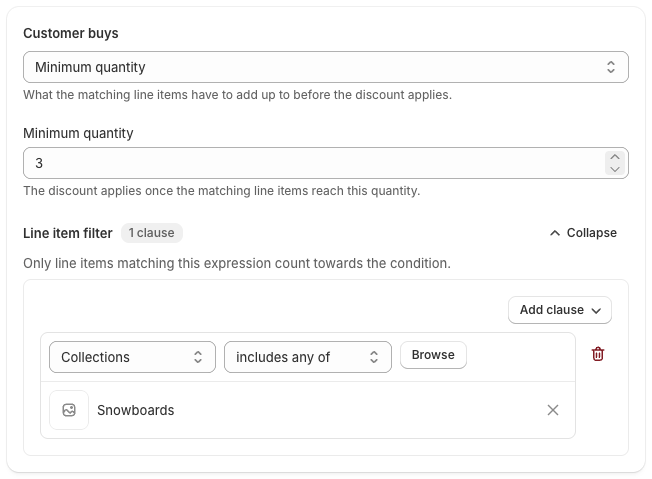
The maximum number of uses per order is set to 1, so the customer only gets one 50% off snowboard per order.
The screenshot below shows how the discount appears in the cart.
Buy 3 snowboards get 1 free
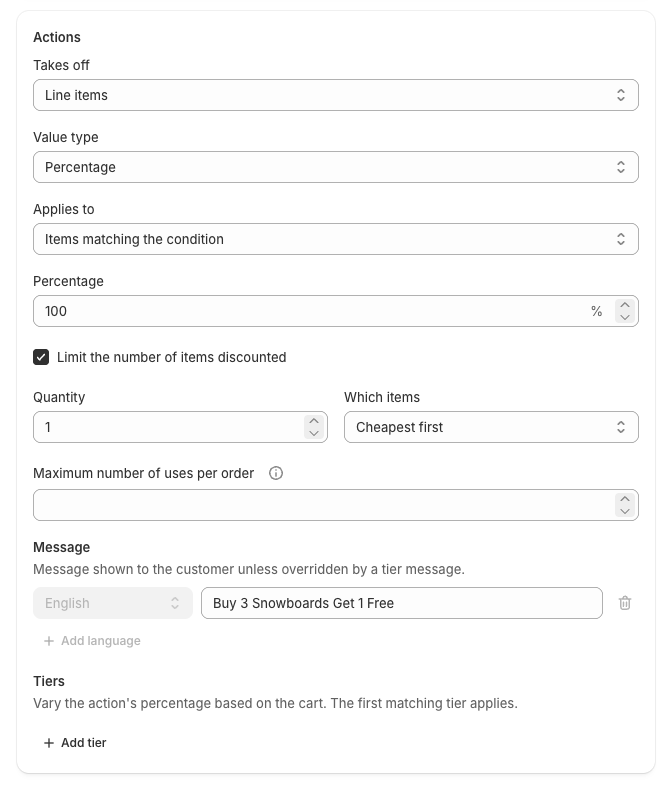
The example below is for the customer having to pay full price for 3 boards to get the 4th board for free. As a result, the condition requires 4 snowboards in the cart.
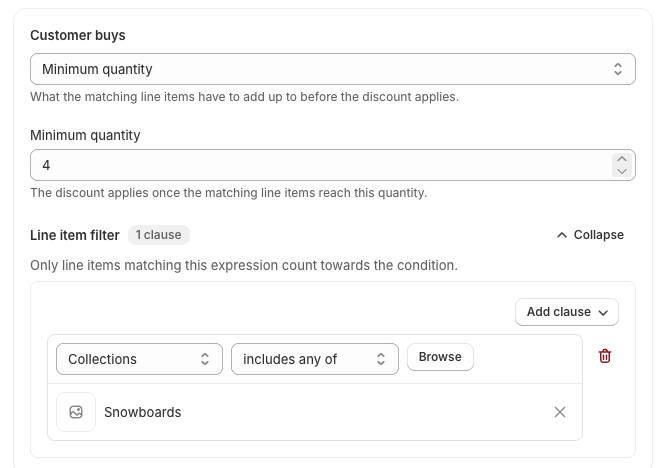
This discount has no limit on the number of times it can be used per order, so if the customer has 8 snowboards in the cart, they would get 2 free boards etc.
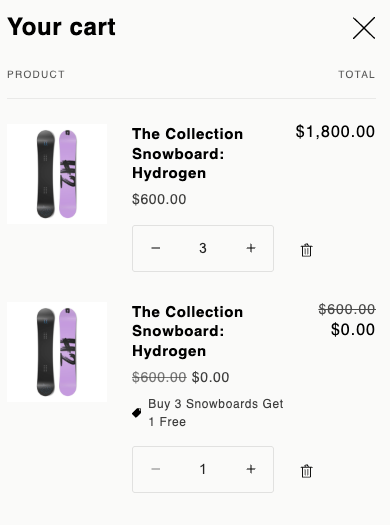
The screenshot below shows how the discount appears in the cart.